
BHM-79/88 Bluetooth Mic Troubleshooting: Fix Audio Distortion & PTT Issues
Wireless communication should be crystal clear. Use this guide to optimize your BHM-79/88 setup and eliminate common connection interference.
Problem 1: Distorted "Robotic" Audio
Does your voice sound metallic or scrambled? This is typically caused by Bluetooth bandwidth congestion.
Problem 2: No Transmission or No Audio
If the mic connects but remains silent, it’s often due to the "App-Tethering" conflict.
Rule of Thumb: The HT APP is only for setup (firmware/keys). It should NOT be running during normal operation.
- Open the App only for updates or key assignments.
- Unpair the Mic from your phone after setup.
- Ensure the Mic is paired directly to the host radio.
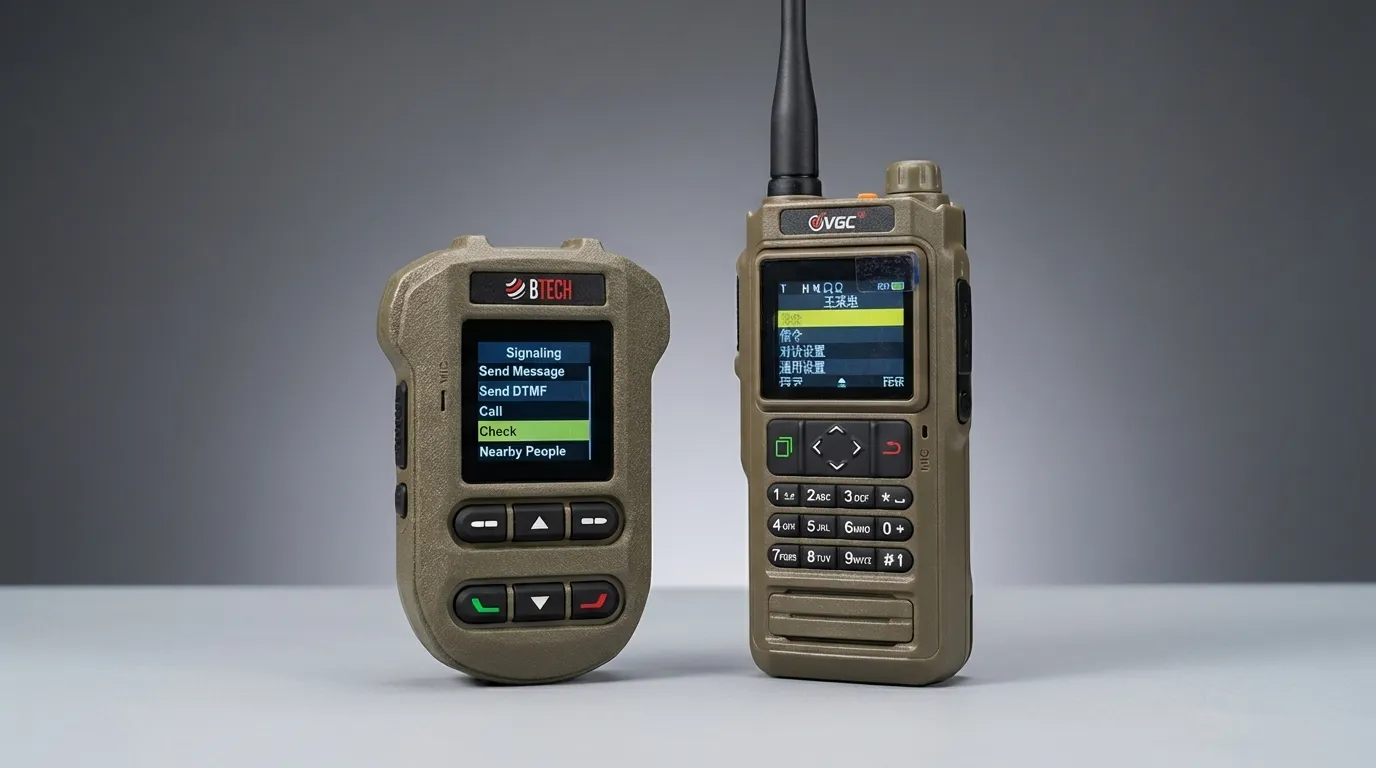
(Illustration: Correct workflow - Configure via App -> Disconnect App -> Use with Radio)
Problem 3: Silent PTT (Dead Air)
If your PTT button works but no audio is sent, verify your radio's sound routing:
- Go to General Settings > Sound Settings.
- Enable the "BT MIC" option by checking the box.
Problem 4: Low Transmission Volume
To improve how others hear you, adjust the digital gain: