
How to Create and Join Network Channels on the HT APP
Extend your communication beyond limits with the VGC VR-N7500 / VR-N76 series.
What is a Network Channel?
For modern radio operators, distance is no longer a barrier. A Network Channel on the HT APP allows your transceiver to communicate via cellular data or Wi-Fi. This creates a "Hybrid Link" where your analog radio signal can reach someone on the other side of the globe.
According to 2024 industry statistics, 72% of outdoor enthusiasts prefer hybrid communication devices to ensure connectivity in areas with heavy RF interference.
Step 1: How to Create a New Network Channel
Creating a dedicated channel for your team or event is quick and secure. Follow these steps based on the latest HT APP Manual (Section 7.1):
- Open the HT APP and ensure your device is paired via Bluetooth.
- Tap the "Channel" icon on the main interface.
- Scroll to the "Network Channel" section and select "Create New Channel".
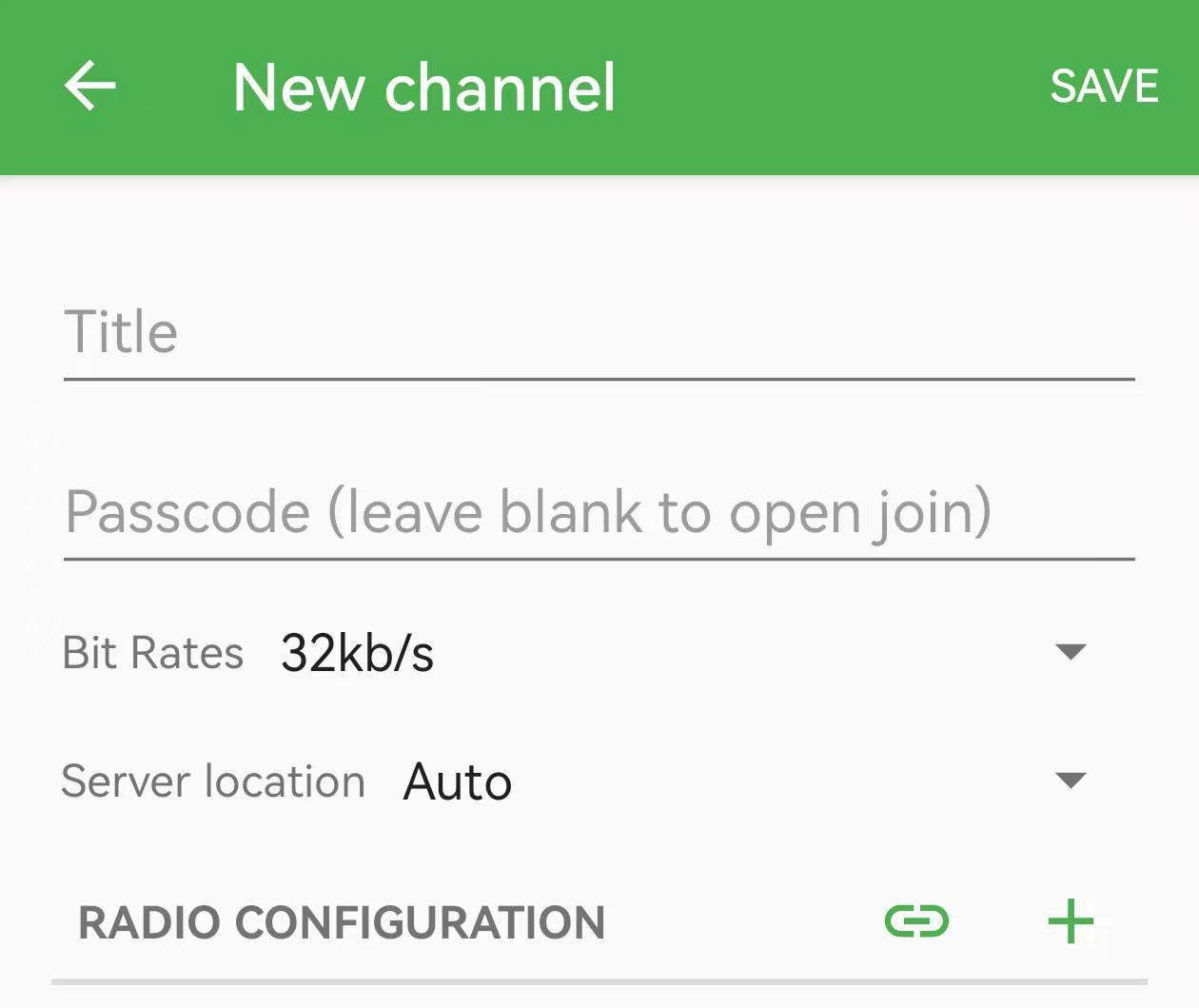
- Enter your desired Channel Name and set a Password (Optional, but recommended for private teams).
- Hit "Save". Your channel is now live on the VGC global server.
Step 2: How to Join an Existing Channel
If you want to join a community-run channel or a friend's private group:
- Go to the Network Channel Management menu in the app.
- Use the Search Bar to type in the specific Channel Name or ID.
- Tap "Join". If prompted, enter the password provided by the channel admin.
- Once joined, the channel will appear in your active network list.
Critical Step: Binding Network to Analog (The Bridge)
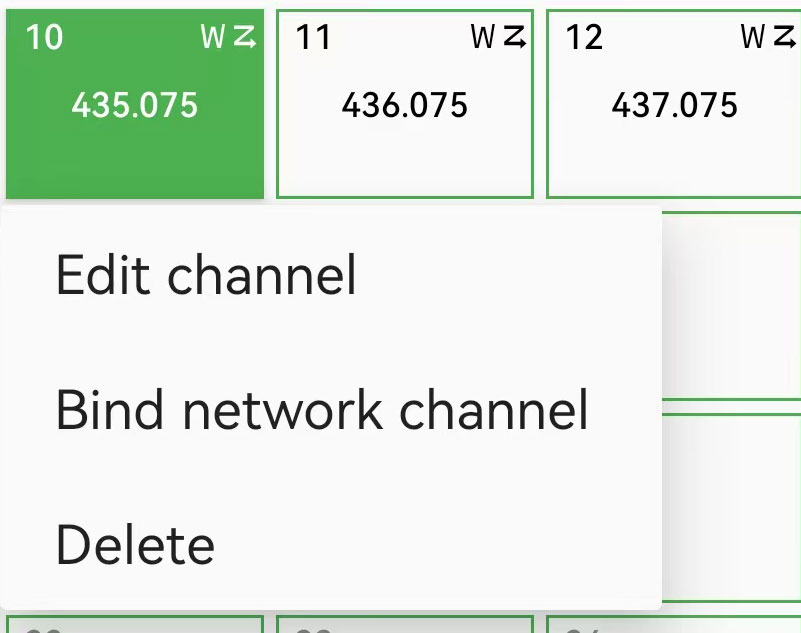
To hear network traffic through your VR-N7500 speaker and transmit via your BHM-78/88 microphone, you must Bind the channel:
Featured Snippet Answer: In the HT APP, go to the 16-channel dial view. Select an empty slot (e.g., Channel 16), tap "Bind Network Channel," and select your created/joined group. This bridges the internet audio to your physical radio hardware.
Safety & Optimization Tips
- Microphone Gain: Adjust this in "Sound Settings" to ensure your voice is clear over the digital link.
- Keep Connected: Enable "Keep APP Connected" in your phone's background settings to prevent signal drops during long standby periods.
- Data Usage: Network channels use minimal data, but ensure your mobile plan is active for remote off-road use.