
How to Batch Program & Share Radio Frequencies with HT App Share Codes (Android Guide)
⚡ Quick Summary: Tired of manually keying in frequencies and CTCSS tones on your walkie-talkie? For Android users running the official HT App with VGC / Vero Telecom N-Series radios (like the VR-N76 and VR-N7600), you can program channel groups on your phone or PC, convert them into a JSON Share Code, and instantly paste or sync them with trail teammates in seconds! (Note: This clipboard text-code feature is exclusive to Android devices).
1. Why This Feature Matters: Solving 4 Major Comms Pain Points
Traditional radio programming has always been a frustrating bottleneck for off-roaders, ham operators, and fleet managers. Here is how the HT App Share Code architecture revolutionizes radio management:
Forget cumbersome USB programming cables, driver errors, and carrying laptops into the backcountry. Edit frequencies right on your Android smartphone clipboard and sync wirelessly via Bluetooth.
Instead of spending an hour manually typing frequencies and sub-tones for 15 trucks at the trailhead, the convoy leader broadcasts one text code—everyone pastes and syncs instantly.
Traveling to a new state or country? Local clubs can send you pre-configured repeater lists with offsets and CTCSS tones, allowing instant access to local repeater networks without guesswork.
Fleet managers can dispatch standardized channel configurations via email or messaging apps. Non-technical field workers can update their radios effortlessly, drastically lowering operating costs.
2. The HT App Frequency Share Code Template (Android)
By simply copying a structured text string to your Android smartphone clipboard, opening the HT App automatically triggers a prompt to save these channels into your radio's group memory. Below is the standard JSON structure used for frequency sharing:
{
  "n": "Trail Team 4x4 Group",
  "chs": [
    {"n": "Ch 01 Trail Main", "rf": "438.500", "tf": "438.500", "rs": 8850, "ts": 8850, "id": 1, "p": 0},
    {"n": "Ch 02 Scout Team", "rf": "435.075", "tf": "435.075", "rs": 8850, "ts": 8850, "id": 1, "p": -1},
    {"n": "Ch 03 Repeater 1", "rf": "439.125", "tf": "434.125", "rs": 10000, "ts": 10000, "id": 1, "p": 0},
    {"n": "Ch 04 APRS Data",  "rf": "144.390", "tf": "144.390", "id": 1, "p": 0}
  ]
}
- "n": Group Name or Channel Name (e.g., "Trail Team 4x4 Group" or "Ch 01 Trail Main").
- "rf" / "tf": Receive Frequency (RF) and Transmit Frequency (TF) in MHz (e.g., "438.500").
-
"rs" / "ts": Receive & Transmit CTCSS / DCS tones. Note: 8850 represents 88.5Hz, 10000 represents 100.0Hz. If subtone is not required, omit
"rs"and"ts". -
"p": Transmit Power setting:
0= High Power,-2= Mid Power,-1= Low Power.
3. How to Import & Sync Share Codes (Step-by-Step for Android)
- Prepare or Edit Code: Edit the JSON text on your PC or smartphone messaging app according to your local club or convoy frequencies.
-
Copy to Clipboard: Highlight and copy the complete text snippet (including brackets
{ }) to your Android phone’s clipboard. - Open HT App: Launch the HT App on your Android device. The app automatically detects the share code stored in your clipboard.
- Save to Group: Tap [SAVE] when prompted. If your radio is currently connected via Bluetooth, select the target Zone/Group to save directly into radio memory. If disconnected, it saves to local app storage for later sync.
-
Sync to Hardware: Under Settings → Channel Group Manager, tap the green sync arrow (
↑) to upload the channel list wirelessly to your radio transceiver!
4. Exporting & Sharing Existing Channel Groups
If you already have a configured Channel Group on your radio, you can export it to share with fellow drivers or ham operators:
Generates a standard spreadsheet file of your active channels. Perfect for editing in Excel or importing into PC software like HT Commander.
Creates a text string that Android team members can paste directly into their HT App to automatically mirror your radio channels.
❓ Frequently Asked Questions (FAQ)
Q1: Does this JSON Share Code feature work on iPhone / iOS?
A: No, this clipboard code function is currently exclusive to Android devices running the HT App. iOS users using the BS HT App can manually create channel groups or sync configurations directly within the app interface.
Q2: What happens if my frequency code exceeds the radio's allowed range?
A: The HT App checks frequency validation before writing to hardware. Frequencies outside your radio model's supported hardware band (e.g., VHF 136-174MHz / UHF 400-480MHz) will throw an error or be skipped during synchronization.
Compatible App-Defined Radio Transceivers:
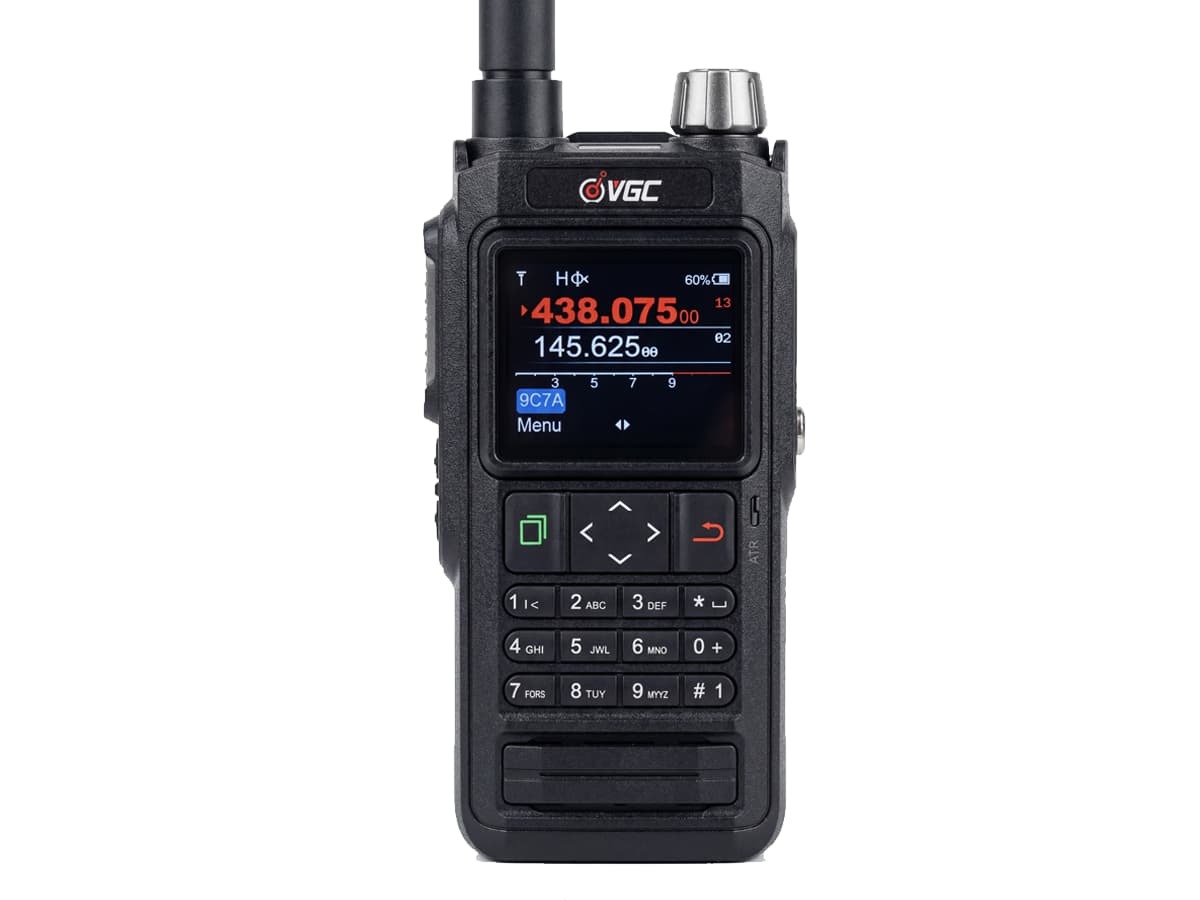
VR-N76 Smart HT
Smart Dual-Band Handheld. Full Bluetooth app programming, APRS/GPS tracking, and fast JSON code import for Android.
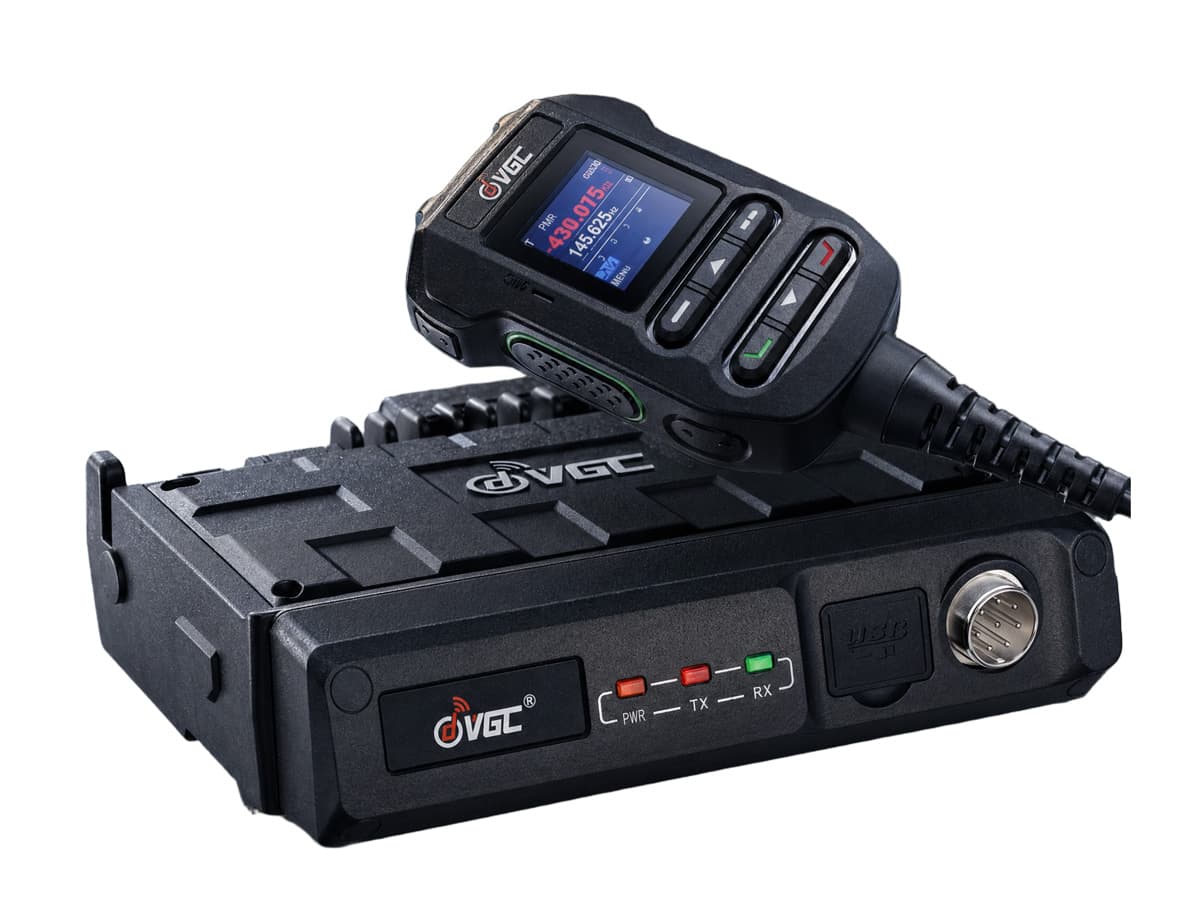
VR-N7600 Mobile Radio
50W Headless Vehicle Transceiver. Built for clean stealth installations with total app management.
Need Fleet Frequency Customization or Wholesale Solutions?
We provide factory pre-programmed radio channels, OEM/ODM firmware configurations, and bulk dealer rates.
Technical Documentation Database © 2026 | Full-Stack App-Defined Off-Grid Communication Systems